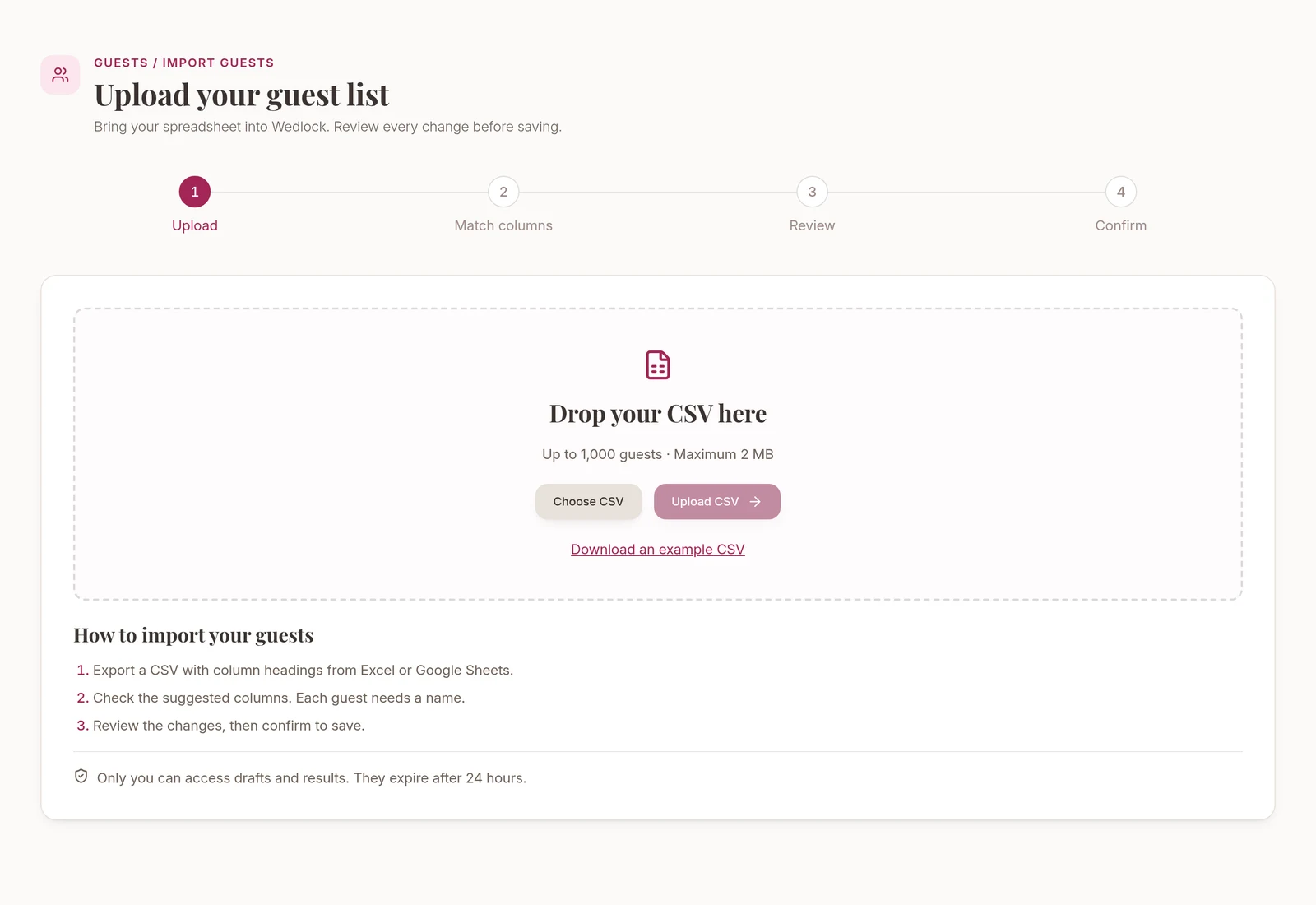
If your guest list is already in Excel or Google Sheets, you can now bring it into Wedlock without adding everyone again by hand.
Open Guests, then Import Guests. Upload a CSV, tell Wedlock which columns to use and check the proposed changes. Your guest list only changes when you confirm the import.
Start with your spreadsheet
Export your sheet as a CSV with column headings and one person per row. You can upload up to 1,000 guest rows in a file of up to 2 MB. Excel workbooks need exporting as CSV first; the importer doesn’t connect to a live spreadsheet.
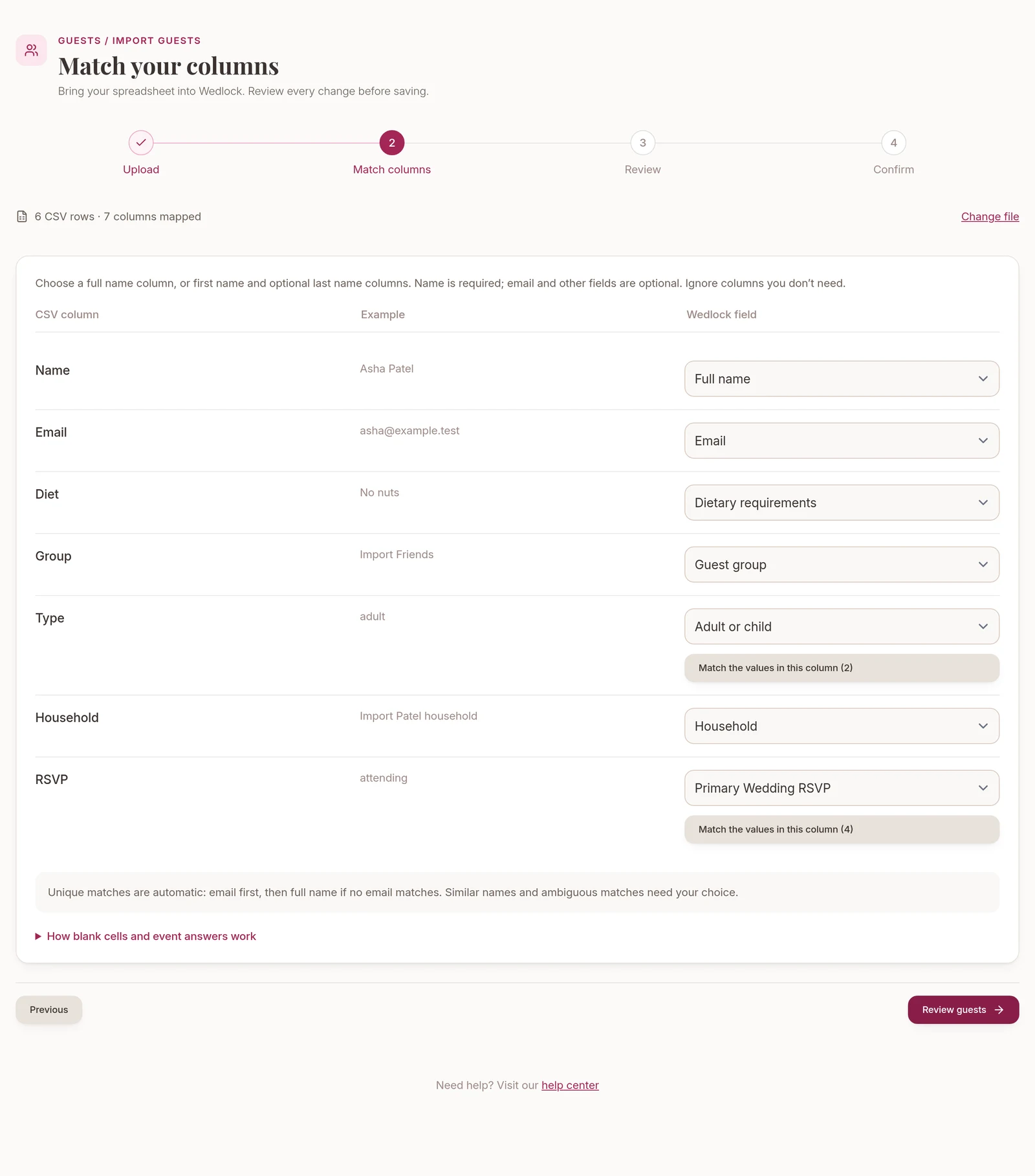
You don’t need to rearrange everything into a fixed template. Match your own columns to Wedlock’s fields and ignore any you don’t want to bring over. There’s also an example CSV to download from the upload screen.
A name is required, either in one column or split into first and last names. Email is optional. You can also bring over dietary requirements, guest groups, adult or child details, households and RSVP statuses.
Check new guests, updates and possible duplicates
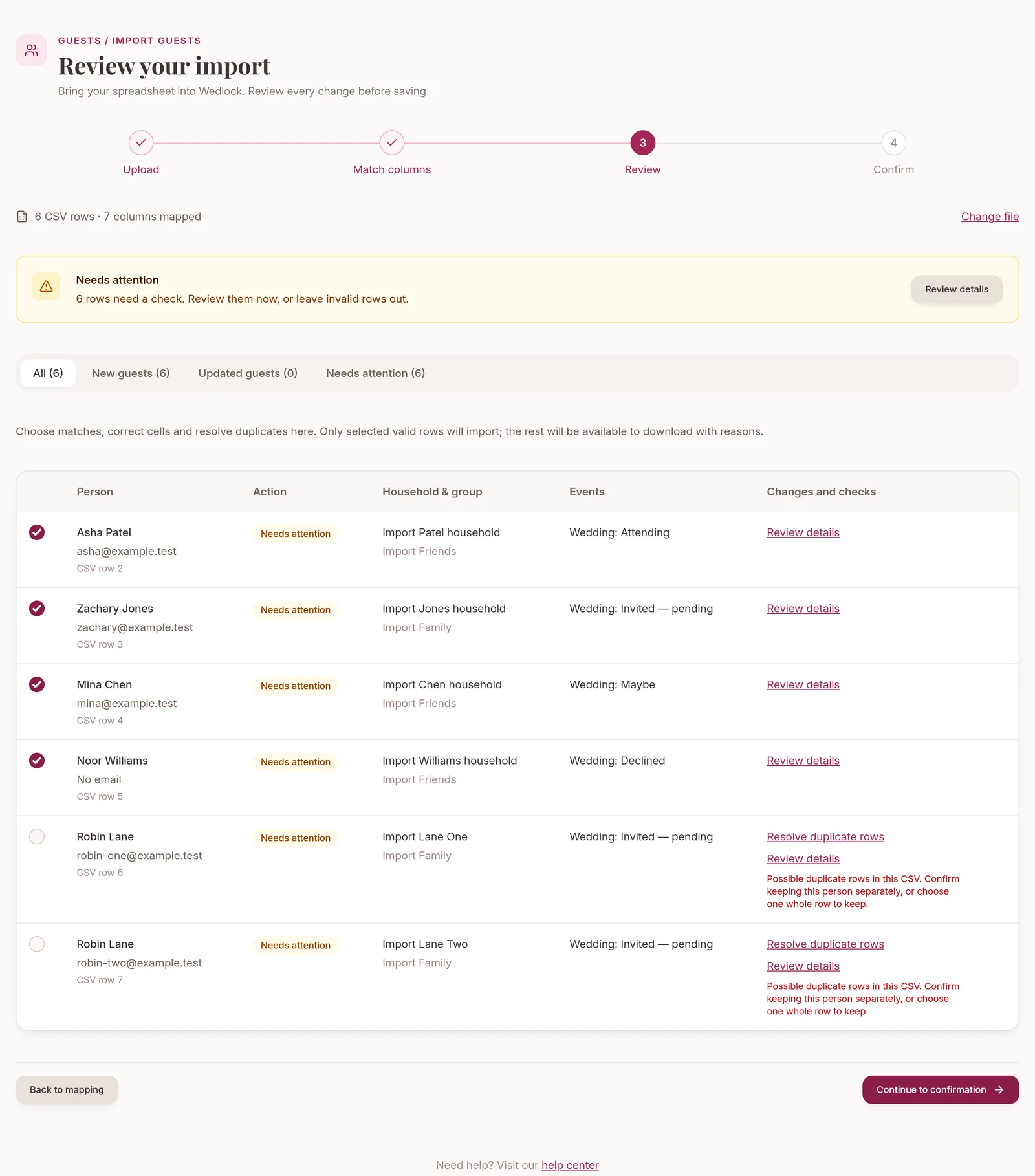
The review separates new guests from updates to people already on your list. Wedlock checks for matching email addresses first, then full names if there isn’t an email match. You decide what to do with similar names or matches that could refer to more than one person.
Open a row to correct a cell, choose an existing guest or add someone as a new person. If two rows look like duplicates, you can keep one whole row or confirm that they’re different people. Conflicting fields aren’t silently combined.
When updating an existing guest, a blank cell leaves their current details alone. If a column you’ve chosen to import has a value, it replaces the current one. You can see those changes before saving.
Bring households and replies with you
If your sheet already has households or guest groups, you can map those columns too. Check who will share each household carefully: anyone with its RSVP link can see and change everyone’s replies and dietary notes. The importer asks you to confirm household moves and stops affected shared links from working.
For separate occasions, such as Sunday brunch, use one column per occasion and map it to an existing or new event. Check what each answer means. A “No” might mean declined or not invited, so you choose how to interpret it.
Blank event cells keep an existing guest’s invitation and reply unchanged. For new guests, a blank mapped event cell means not invited. If you don’t include event columns, new guests get an invitation to the main Wedding occasion, pending unless you supply an RSVP status. Check the invitation states in the review before confirming.
Importing doesn’t send invitation emails or bring over meal choices or table assignments. If an update removes someone’s invitation to the main Wedding occasion, you’ll need to confirm that they’ll lose their table assignment too.
Confirm what you want to save
Wedlock imports only the valid rows you select. You can leave problem rows out and download them afterwards with the reasons they were skipped. The results show how many guests were added, updated or left out.
There’s no undo for a completed import. You can correct a guest through the usual editors or another import. Your private import drafts and results expire after 24 hours.
Included on Free and Complete
The importer is included on both plans, within your existing limits for guests and guest groups. Free allows up to 25 guests in total. If your CSV goes over a limit, you can choose which rows to import or upgrade. Complete includes unlimited guests; the 1,000-row limit still applies to each upload.
Import your guests, or compare the plans if you’re new to Wedlock.